
Samsung Battery Health Charging Guide
Discover tips to maximize battery for samsung phone health, find reliable replacements, and master charging to extend life and performance.
 Editorial
Finding the right battery for a Samsung phone is about more than just matching a model number. You need to understand its type, capacity, and how it works with your specific device. Most modern Samsung phones run on Lithium-Polymer (Li-Polymer) batteries because their design is so flexible, while you might find Lithium-Ion (Li-Ion) types in older models. Knowing the difference is key when it's time for a replacement or you're just trying to figure out a new phone's real-world performance.
Understanding What Powers Your Samsung Phone
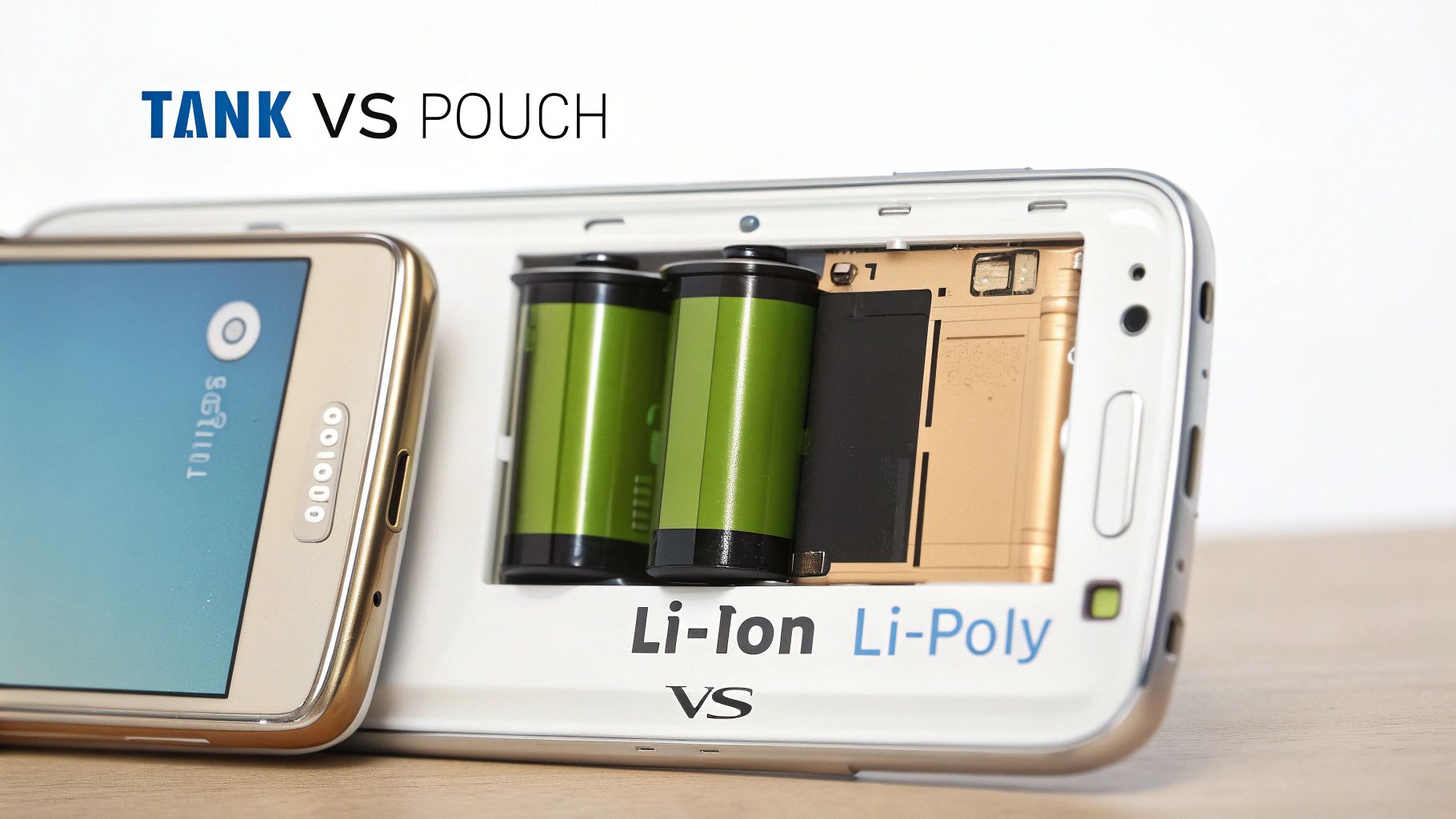
At the heart of every Samsung phone is a sophisticated little power plant designed to keep you going all day. The technology has come a long way, shifting from the traditional Lithium-Ion (Li-Ion) batteries to the more modern Lithium-Polymer (Li-Polymer) ones. The difference is actually pretty simple.
Think of an old-school Li-Ion battery like a rigid, metal water bottle—it’s sturdy and gets the job done, but its shape is fixed. A Li-Polymer battery, on the other hand, is like a flexible water pouch. It can be molded into all sorts of thin and unusual shapes, which is perfect for today’s super-slim smartphones and especially crucial for foldable devices.
Translating Tech Specs into Real-World Use
When you start looking at battery specs, the first thing you'll see is milliamp-hours (mAh). This isn't just a random number; it's a direct measurement of how much energy the battery can hold. Simply put, a higher mAh usually means you can go longer between charges.
Let's break that down with real examples:
- A hefty 5,000 mAh battery in a Galaxy S series phone is built for a power user. It can easily last a full day of heavy multitasking, video streaming, and GPS navigation.
- A 4,400 mAh battery might sound like a step down, but when it’s paired with a super-efficient processor, it can deliver incredible endurance, even while powering demanding features like dual screens.
This relationship between raw capacity and efficiency is everything. It's not just about the size of the fuel tank, but also about how efficiently the engine—your phone's chipset—burns that fuel.
How Chipsets Maximize Battery Performance
Modern processors, like the Snapdragon 8 series, are engineered from the ground up for power efficiency. They’re smart about managing tasks to use as little energy as possible. This means a phone with a 4,400 mAh battery today can often outperform an older device with a 5,000 mAh battery.
A perfect example is the Galaxy Z Fold series, which has the tough job of powering two large screens. By pairing a high-capacity Li-Polymer battery with a power-sipping chipset, Samsung manages to achieve remarkable longevity.
The Galaxy Z Fold 7, with its 4,400 mAh battery, lasted an impressive 10 hours and 55 minutes in demanding tests. That’s a full 20-minute improvement over its predecessor, all thanks to the more efficient Snapdragon 8 Elite chipset. You can check out the full breakdown of these foldable phone battery tests on Tom's Guide. It just goes to show how hardware and software work together to deliver the performance you need, whether you're on a construction site or stuck in back-to-back meetings.
How to Check Your Samsung Battery Health
Think of your Samsung phone’s battery health as a long-term fuel gauge. Just like any rechargeable battery, its ability to hold a full charge will naturally fade over time. The good news is you don’t need to be a tech wizard to see how it’s holding up—Samsung built some simple tools right into your phone.
The quickest way to get a status update is through your Settings app. Just head over to Battery and device care, tap on Diagnostics, and you’ll find a whole suite of tools. From there, you can run a specific diagnostic on your battery to check its condition. It's a fast, reliable way to see if your battery is still performing like it should.
Using the Samsung Members App
If you want a bit more detail, the Samsung Members app is your best friend. It comes pre-installed on most Samsung devices and offers a much more thorough diagnostic check.
Here’s how to run it:
- Open the Samsung Members app.
- Tap on the Support tab at the bottom of the screen.
- Choose Phone diagnostics.
- Tap on Battery status to start the test.
The app will give you a clear verdict on your battery's life, usually labeling it as 'Good', 'Normal', or 'Weak'. This is Samsung's straightforward way of telling you what's going on under the hood.
This little status indicator gives you a direct, actionable piece of information about your battery's current state, helping you figure out if you need to take any next steps.
Decoding the Battery Health Status
So, what do these 'Good' or 'Weak' labels actually mean for your day-to-day use? It's basically a simple report card for your battery's performance.
A "Good" status is what you want to see. It generally means your battery is still holding 85% or more of its original capacity. In this range, you shouldn't notice any real drop in performance.
If the status comes back as 'Normal', it usually means the capacity has dipped somewhere between 80% and 85%. You might start noticing that you have to reach for the charger a little more often. A 'Weak' status is a clear sign that the battery's capacity has fallen below 80%, and it might be time to start thinking about a replacement.
Samsung Battery Health Status Indicators Explained
Here’s a quick reference guide to help you understand what your phone is telling you and what you should do about it.
| Status Indicator | What It Means | Recommended Action |
|---|---|---|
| Good | Your battery is performing well, holding 85% or more of its original capacity. | No action needed. Continue using your phone normally and follow good charging practices. |
| Normal | The battery capacity has slightly degraded, now holding between 80-85%. | Keep an eye on your usage. You might notice slightly shorter battery life, but it's not critical yet. |
| Weak | The battery has significant wear and is holding less than 80% of its original capacity. | Your phone will likely need charging much more frequently. Consider planning for a professional battery replacement soon. |
This table breaks it down simply, turning Samsung's diagnostic feedback into practical advice.
For those who love to keep a constant eye on their stats, you can also add a widget to your home screen. For a step-by-step guide, check out our tutorial on setting up a battery widget on Android. While Samsung’s own tools are great for a quick look, some third-party apps like AccuBattery can give you even more granular data, like the estimated capacity in mAh and a history of charge cycles.
Choosing the Right Replacement Samsung Battery
When your Samsung’s battery health starts to dip, you'll face a big decision—one that affects not just your phone's performance, but its safety, too. Picking a replacement isn't as simple as finding a part that fits; it's about restoring your phone to its original glory. You generally have three paths to choose from, and each comes with its own set of pros and cons.
It’s a lot like servicing your car. You can take it to the official dealership, trust a local mechanic you've vetted, or try to fix it yourself in the garage on a Saturday afternoon. Each route demands a different level of trust, money, and skill. Making the right call for your battery for Samsung phone follows that same logic.
This decision tree gives you a clear path forward based on your battery's current health.
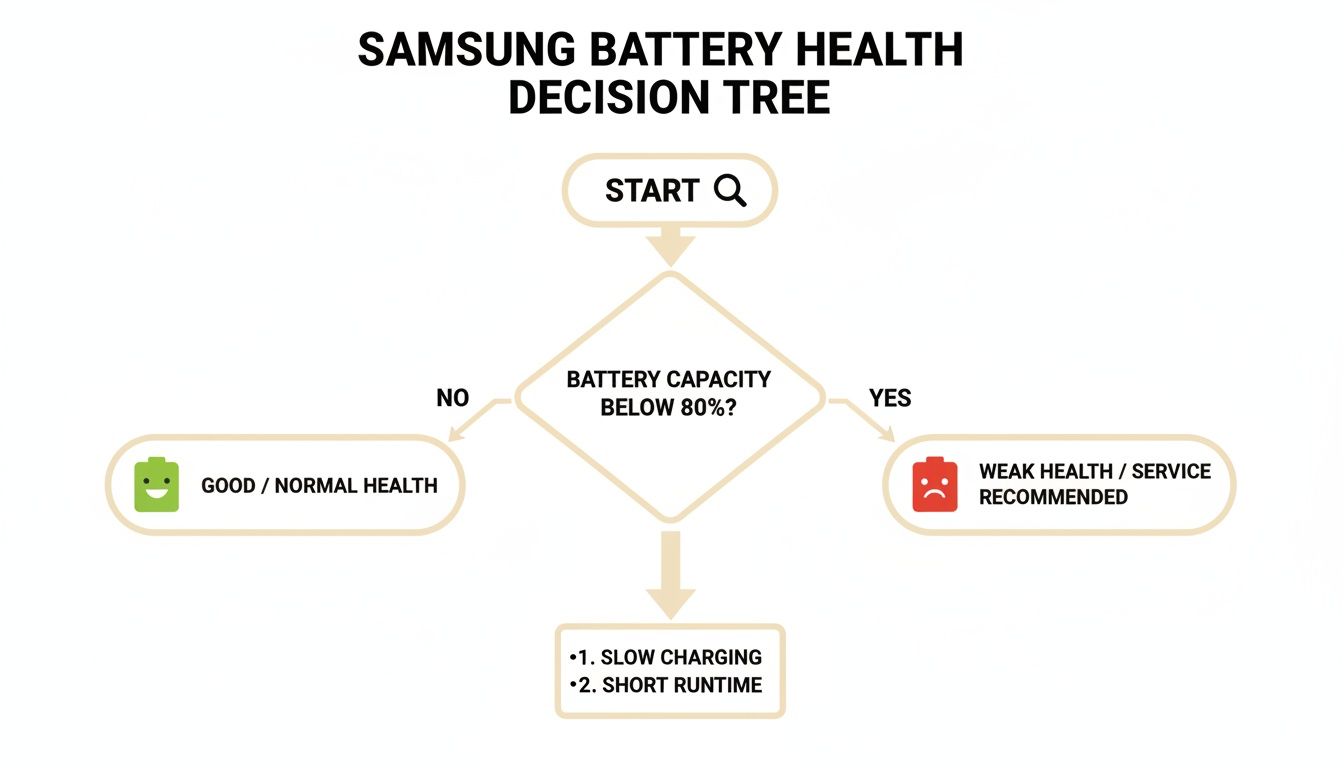
The bottom line is simple: once your battery’s maximum capacity drops below the 80% threshold, it’s time to seriously look for a replacement to avoid slowdowns and unexpected shutdowns.
Official Samsung Service Centers
Going to an official Samsung service center is the dealership equivalent. It's hands-down the safest and most reliable route you can take. Here, you're guaranteed to get an Original Equipment Manufacturer (OEM) battery—the very same kind your phone had when it was new.
These batteries are installed by certified technicians who have the right tools for the job. Critically, they know how to properly reapply the seals that keep your phone water and dust-resistant. While it’s usually the priciest option, the peace of mind is often worth it. You get a perfect fit, guaranteed performance, and an official warranty on the repair itself. For newer or high-end models like the Galaxy Z Fold series, this is almost always the best way to protect your investment.
Third-Party Repair Shops
Opting for an independent repair shop is like going to that local mechanic. The quality can be a mixed bag, which means you absolutely have to do your homework. Some shops are fantastic, using high-quality aftermarket parts that perform almost as well as OEM batteries. Others? They might use cheap, sketchy components that could even be a safety risk.
Before you hand over your phone, ask a few questions:
- Technician Certifications: Do their techs have any specific training for mobile device repair?
- Part Quality: Where do they get their batteries? A good shop will be upfront about whether they use OEM parts or premium aftermarket ones.
- Warranty: Any trustworthy shop will offer a warranty on both the battery and their labor, usually for 90 days or more.
- Customer Reviews: A quick look at online reviews will tell you a lot about their reputation and customer service.
Going the third-party route can definitely save you some cash, but it demands careful vetting. A poorly installed battery can cause more damage down the line, so never choose a shop based on price alone.
DIY Replacement Kits
For the tech-savvy and the brave, a Do-It-Yourself (DIY) battery replacement is the most hands-on approach. This path offers the biggest cost savings, but it also carries the most risk. Modern smartphones are sealed tight with powerful adhesives, making them a real pain to open without specialized gear like heat guns and pry tools.
One slip of the hand could sever a delicate ribbon cable, crack the screen, or—worst of all—puncture the old battery, which is a serious fire hazard. If you still want to give it a go, make sure you source your battery and tool kit from a highly reputable supplier like iFixit. They provide high-quality parts and detailed, step-by-step guides that are essential for a safe and successful repair.
Mastering Daily Charging to Extend Battery Life
How you charge your Samsung phone every day has a much bigger impact on its long-term health than you might realize. If you're still following the old advice about draining your battery completely, it's time for an update. Modern Lithium-Polymer batteries are a different breed entirely; they're happiest when they avoid those extreme highs and lows.
Think of your phone's battery like a muscle. Pushing it to its absolute limit (100% charge) or letting it get completely exhausted (0% charge) causes unnecessary stress. Over time, that constant strain degrades the battery's ability to hold a charge, cutting its overall lifespan short.
The 20 to 80 Percent Sweet Spot
The real secret to a long-lasting battery for Samsung phone is keeping its charge level somewhere in that comfortable middle ground. The widely accepted sweet spot is between 20% and 80%. Staying in this range minimizes stress on the battery's internal components, which can dramatically slow down the chemical aging process.
To make this easy, Samsung built in a brilliant feature called ‘Protect Battery’. You can find it right in your battery settings. When you turn it on, it automatically stops charging once your phone hits 85%, acting as a built-in safety net to prevent overcharging and extend its service life.
Activating 'Protect Battery' is one of the single most effective things you can do to preserve your battery's health. It automates the 80% rule, so you don't have to constantly monitor your phone while it's plugged in.
This simple toggle takes all the guesswork out of healthy charging. You can dive deeper into how different habits impact longevity in our detailed guide on how to extend phone battery life.
Temperature Is Your Battery’s Enemy
Extreme temperatures are another major threat to your battery's health. Leaving your phone on a car dashboard in the summer sun or out in the freezing cold can cause irreversible damage. High heat, in particular, speeds up the chemical reactions inside the battery, leading to much faster degradation.
A simple rule of thumb:
- Avoid Heat: Never leave your phone in a hot car or in direct sunlight for long periods.
- Stay Cool: Don't charge your phone under a pillow or in a tight space where heat can’t escape.
Smart Charging Fast and Slow
Samsung gives you a range of charging speeds, from standard charging all the way up to 45W super-fast charging. The best one to use really just depends on the situation.
- Super-Fast Charging (45W): This is your best friend when you need a quick power boost before heading out. It's designed to get you back in the game as quickly as possible.
- Slower Overnight Charging: When you've got more time, like overnight, using a standard charger or even a wireless one is much gentler on the battery. Slower charging generates less heat, which is always better for long-term health.
To really get the most out of your battery, it helps to understand all the tools at your disposal; for instance, learning more about how wireless charging works can help you make smarter decisions about your daily routine. The latest phones show just how far the tech has come, with YouTube tests clocking the Z Flip 7 at an incredible 12 hours and 57 minutes of endurance. This huge leap in efficiency is a key reason for the 85% battery satisfaction seen in recent user surveys, proving that smart engineering really pays off. You can discover more about these impressive battery benchmarks on PhoneArena.
Troubleshooting Common Samsung Battery Problems
Even the very best battery for a Samsung phone can start acting up. One day everything is fine, and the next you’re watching your battery percentage plummet for no reason. Don't panic—you're not alone, and many of these common issues have surprisingly simple fixes.
Before you assume the battery itself is toast, it’s time to play detective. The most common culprit is often a misbehaving app. Some apps can get stuck in a loop, running constantly in the background and burning through power. A quick look at your phone's battery settings will show you exactly which apps are the biggest energy hogs. If one stands out, you’ve probably found your problem.
The First Steps in Diagnosing Drain
Before you get into the more technical stuff, always start with the basics. These simple checks can resolve a surprising number of battery headaches and are easy enough for anyone to try.
- Check for Software Updates: Samsung is always pushing out updates with performance tweaks and bug fixes. Many of these are designed specifically to improve battery optimization. Head to Settings > Software update and see if there’s one waiting for you.
- Restart Your Phone: It sounds almost too simple to work, but restarting your phone is a classic fix for a reason. It clears out temporary glitches and shuts down any background processes that might be draining your battery.
- Clear the Cache Partition: Think of the cache as your phone’s short-term memory. It can get cluttered with old junk files over time, causing slowdowns and battery drain. Wiping the cache partition doesn't touch your personal data, but it can be a powerful troubleshooting tool.
Using Safe Mode to Isolate the Problem
If the simple fixes don’t do the trick, your next move is to boot into Safe Mode. This is a diagnostic mode that temporarily disables every third-party app you’ve installed. It’s the perfect way to figure out if a downloaded app is the source of your battery woes.
To get into Safe Mode, turn your phone completely off. Then, press and hold the power button until you see the Samsung logo. Once it appears, let go of the power button and immediately press and hold the volume down button. If you did it right, you’ll see the words "Safe Mode" in the bottom corner of your screen.
Now, just use your phone like you normally would. If the battery drain is gone, a third-party app is almost certainly the cause. Restart your phone to exit Safe Mode, then start uninstalling your most recently downloaded apps one by one until the problem is solved.
Pro Tip: Begin by getting rid of the apps you installed right before the battery issues started. This systematic approach is the best way to hunt down and eliminate the problem app without needing to do a full factory reset.
Special Considerations for Foldable Phones
If you own a device like a Galaxy Z Fold, you’ve got a few extra things to think about. That big, beautiful inner display naturally uses more power than the cover screen, so heavy use will drain the battery faster.
The complex hinge and the software that manages the screen transitions can also sometimes cause unexpected power consumption. If you notice a sudden battery drop on your foldable, pay attention to which apps you were using on the inner screen. Sometimes, an app that isn't properly optimized for the foldable format can cause excessive drain. By following these diagnostic steps, you can get your battery performance back under control.
Essential Accessories for Better Battery Performance
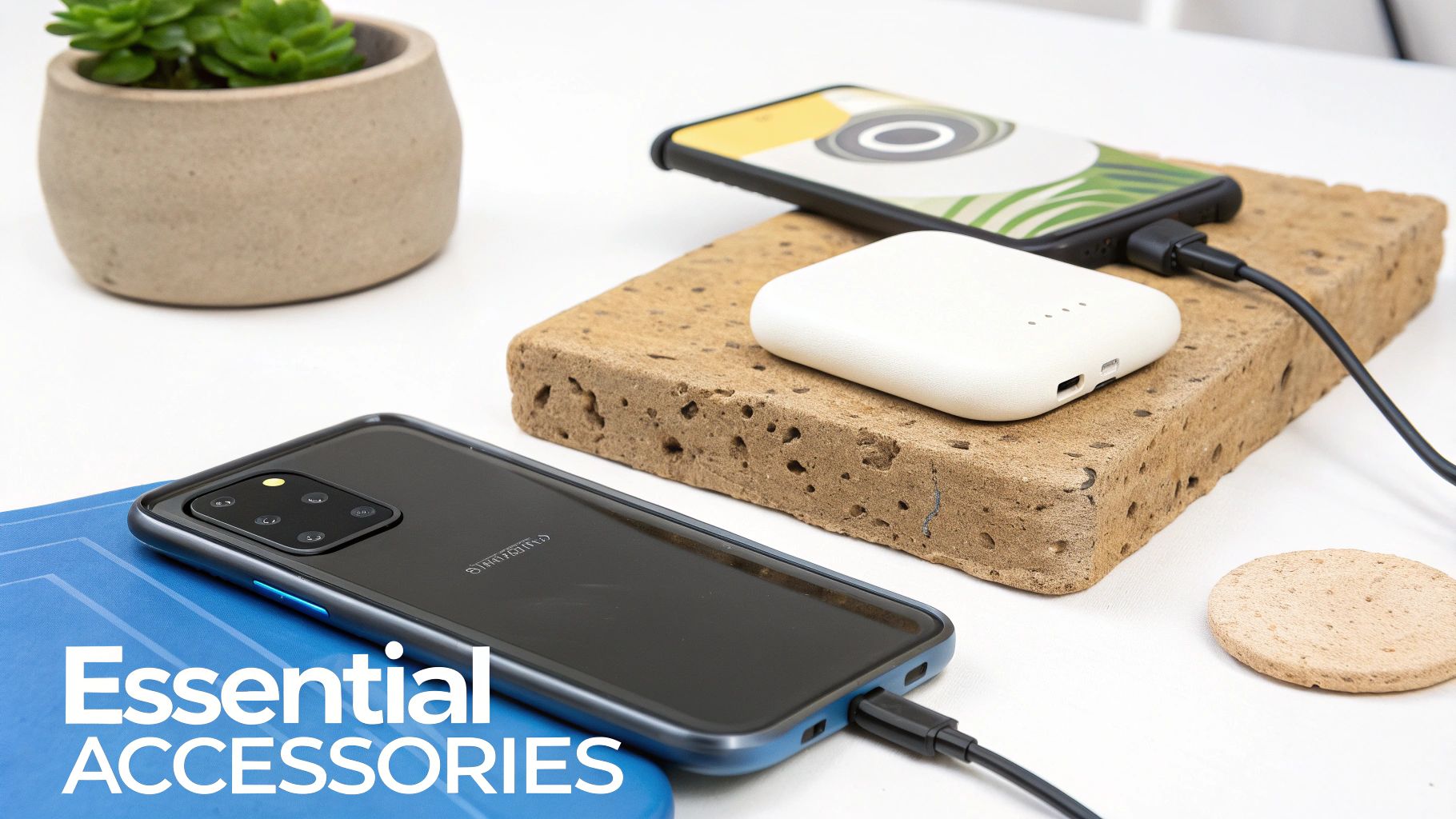
The right gear isn't just a nice add-on; it's a critical part of keeping the battery for your Samsung phone healthy for the long haul. Think of your accessories as a support system. They work behind the scenes to protect your device from the daily grind and unexpected jolts that slowly degrade its performance.
Choosing high-quality, certified accessories is always the first step. That cheap, uncertified charger might seem like a bargain, but it can deliver inconsistent power, causing dangerous heat buildup and damaging your battery over time. For anyone who needs to get back to full power quickly and safely, a quality charger is a non-negotiable part of the toolkit. You can find options like a certified Samsung 45W super fast charger to guarantee reliable performance.
Smart Additions for Longevity
Beyond the wall plug, other accessories play key roles in extending your battery's life and making sure your phone is always ready when you need it most.
- Wireless Charging Pads: These are great for convenience, letting you top up your phone without fumbling with cables. More importantly, they reduce the mechanical stress on your phone's charging port, which is a very common point of failure.
- Portable Power Banks: For those long days when you’re nowhere near an outlet, a power bank is an absolute lifesaver. To ensure your Samsung phone's battery lasts through any adventure, it's worth investing in one of the best portable chargers for travel.
Protection That Goes Beyond the Screen
A durable case does so much more than just prevent cracks and scratches on your screen. It acts as a shock absorber, shielding the delicate internal components—including the battery—from the physical jolt of an accidental drop.
A case with a MIL-STD-810G rating has been properly tested against drops, shocks, and vibrations. This military-grade protection is crucial, as severe impacts can dislodge battery connections or even cause hidden internal damage.
When you invest in the right accessories, you're not just personalizing your phone. You're actually building a complete system designed to protect your investment and squeeze every bit of life out of it. It’s the difference between just knowing what to do and having the right tools to get the job done.
Common Questions About Samsung Batteries
Got questions about your Samsung's battery? You're not alone. Here are some quick answers to the things people ask most, helping you get a better handle on how to care for your phone.
How Long Should a Samsung Phone Battery Last?
A brand-new Samsung battery is built to hold onto at least 80% of its original capacity for about 500 full charge cycles. For most people, that works out to two or three years of reliable use. Of course, this isn't set in stone—your daily habits, how you charge it, and whether you leave it in a hot car will all play a big role in its lifespan.
Can I Replace the Battery Myself?
While it's technically possible to swap out a Samsung battery on your own, it's a tricky job that's easy to get wrong if you're not experienced. Modern phones are glued shut, and you need special tools to pry them open without cracking the screen or tearing a fragile ribbon cable. Even worse, accidentally puncturing the old battery can cause a serious fire.
For your own safety and to make sure your phone's water resistance stays intact, getting a professional replacement from an authorized service center is almost always the smart move. It keeps your device working just like it should.
Shop FoldifyCase foldable phone cases
Precision cases for Galaxy Z Fold & Z Flip — full MagSafe, S-Pen ready, zero bulk.